We use optional analytics cookies to understand how Kinoslide is used. Privacy Policy


Format
Animated slide videos from dense documents
Upload a PDF and Kinoslide drafts an animated slide video with a script, voiceover, and designed templates. Review the structure before publishing and export a finished MP4 for your LMS or content library.

01See it
What the finished video looks like.
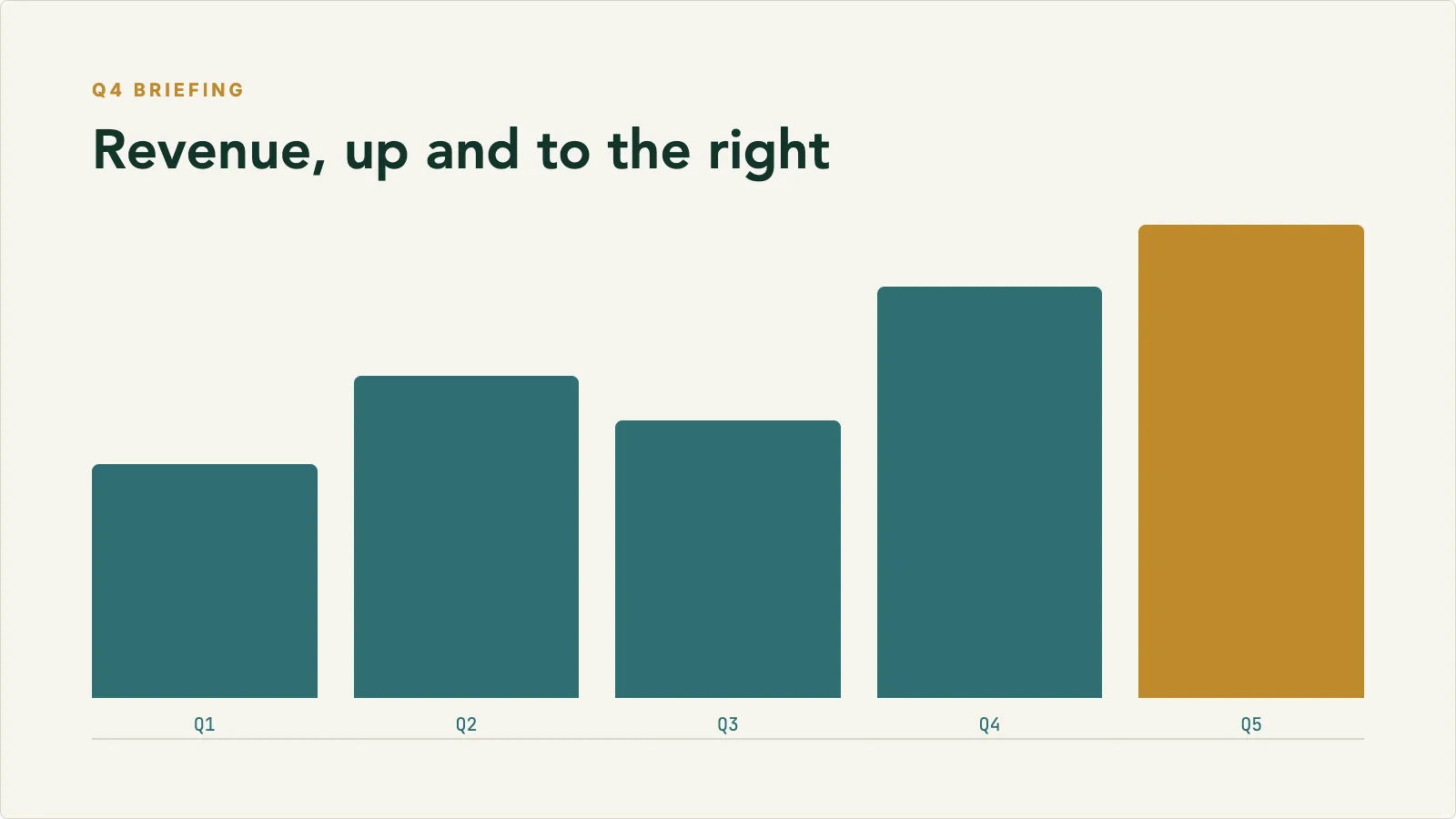
Every Presentation video uses one of 18 built-in templates, with running slide headers and page numbers kept consistent across the deck. Here is the same kind of slide in three of them.
 Executive Cobalt
 Midnight Minimal
 Finance Briefing
02What makes it different
Built for material that has to be explained properly.
- 01
18 built-in templates
Choose from 18 templates with text animation and chart motion. Kinoslide keeps slide headers and page numbers consistent across every slide in the deck.
- 02
Script and narration in one pass
Kinoslide writes the narration, builds the visuals, and records the voiceover from your source document in one pass.
- 03
Review and edit before publishing
Adjust narration, swap visuals, and reorder scenes before the final export. Keep control of the training video before learners see it.
- 04
Export as video or slides
Export a finished MP4, or download the deck as a PDF or PowerPoint file to reuse the slides elsewhere.
03How it works
From the material you have to a video you can publish.
- 01
Upload the source document
Pick the pages you want to cover, set the duration, and choose Presentation.
- 02
Review the storyboard
Kinoslide maps the content into slides with narration. Adjust pacing and messaging before rendering.
- 03
Export and share
Download the finished MP4 for internal distribution, LMS upload, or client delivery.
04Who it's for
Where this fits.
Training and onboarding
Build reusable training videos from existing documentation
- Turn SOPs, onboarding guides, and policy docs into consistent narrated videos
- New hires get the same content every time, delivered at their own pace
- Update the video when the source document changes, without rebuilding from scratch
Creators and consultants
Turn source material into narrated video modules
- Convert research notes, scripts, and client materials into structured videos
- Produce narrated modules without recording every voiceover yourself
- Publish to a content library, client portal, or async learning tool
Stakeholder communication
Share reports and briefs in a format people will open
- Convert dense reports into a short narrated summary that is easier to circulate
- Give stakeholders something they can watch instead of another long PDF
- Keep the message consistent whether the audience watches now or later
05FAQ
Common questions.
Presentation fits content with a clear structure where the audience expects an organized, polished output. Whiteboard fits ideas that need to build gradually, with a more guided, step-by-step reveal.
No. Kinoslide writes the script from the source document. You can edit individual narration snippets after generation if something needs adjusting.
Structured PDFs work best, including reports, training materials, policy documents, slide exports, product briefs, and research summaries. You can also select specific pages rather than using the whole document.
Yes. Pro and Scale plans support transcript edits and image regeneration so you can fix specific scenes without rerendering the whole project.
Get started
Start with the material you already have.
Upload a document, choose the format, and review the first draft in minutes. Free to start.