

We use optional analytics cookies to understand how Kinoslide is used. Privacy Policy

Workflow

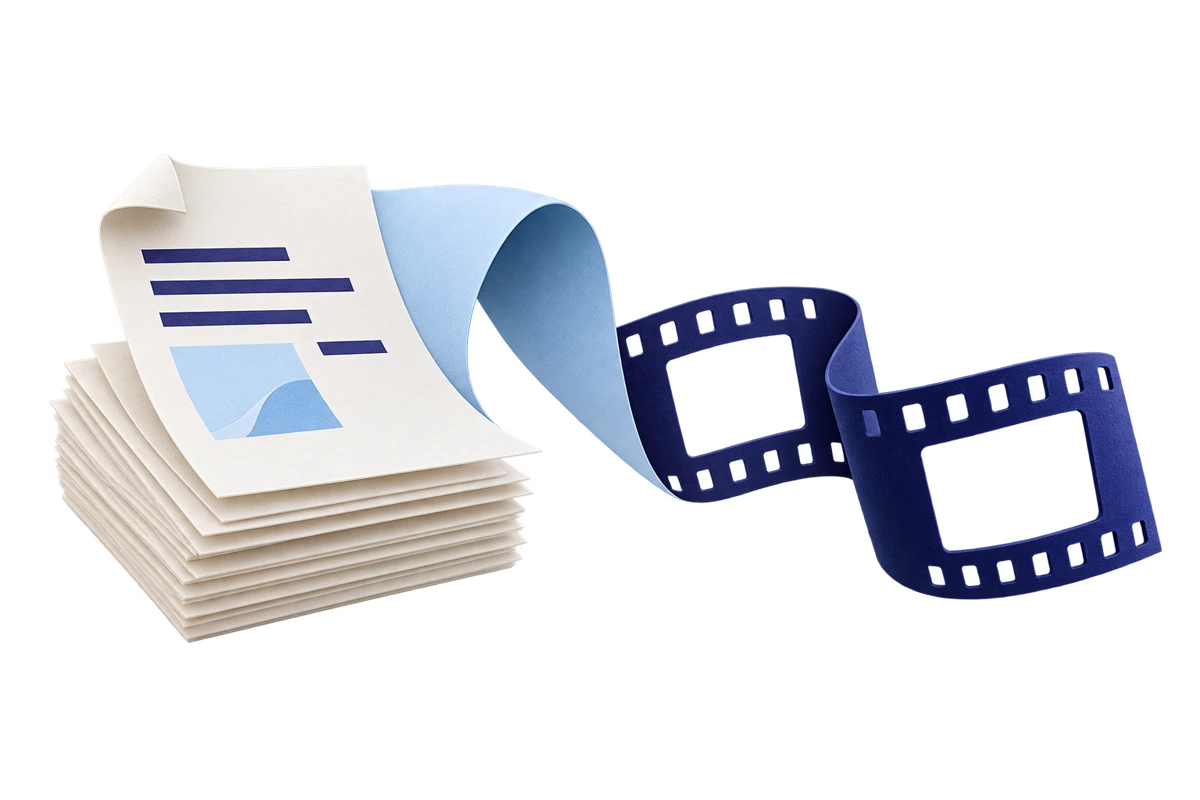
Turn a PDF into a narrated video lesson

Upload a PDF, choose the pages you need, and pick Dry Erase, Presentation, or Whiteboard. Kinoslide drafts the script, scene visuals, and voiceover.

01See it

What the finished video looks like.

Watch how a source document becomes a reviewable storyboard with narration and scene visuals.

Product tour. This is the Kinoslide workflow, from the source document to a scene-by-scene video draft.

02What makes it different

Built for material that has to be explained properly.

01

Choose the pages that matter

Use a full document or select one section. This keeps a short video focused instead of squeezing an entire manual into a few minutes.

02

Pick the right video format

Use Dry Erase, a whiteboard with motion, for a lesson drawn and animated in time with the narration. Use Presentation for structured material, charts, and briefings. Use Whiteboard when a process should reveal one step at a time.

03

Review before you publish

Pro and Scale plans let you check the storyboard, rewrite narration, reorder scenes, and replace weak visuals before the final render.

03How it works

From the material you have to a video you can publish.

  1. 01

    Upload the PDF

    Attach a PDF right on the create screen, or reuse one you already uploaded. Choose the page range, requested duration, language, and video format.

  2. 02

    Kinoslide builds the draft

    Kinoslide reads the selected pages and maps the material into scenes with narration, visuals, and timing.

  3. 03

    Review, render, and share

    Check the storyboard on supported plans, then export an MP4 for an LMS, team library, or customer education course.

04PDF conversion guide

What happens after you upload the PDF

A useful result starts with a narrow page range and a clear job for the video. The format and review process depend on the material.

Free test

Try the workflow with a short PDF

Source
Upload one PDF up to 10 MB and 10 pages on the Free plan
Review
Choose the page range, format, language, and requested duration before generation
Output
Use 5 free credits across videos up to 2 minutes each

Training manual

Turn one procedure into a focused lesson

Source
Select the pages that cover one task instead of sending the whole manual into one video
Review
Check whether each scene explains a step the learner needs to perform
Output
Export a short MP4 that can sit beside the full manual in an LMS or team library

Policy update

Replace the sections that changed

Source
Use the current policy or bulletin as the source for a new draft
Review
On Pro and Scale, edit the affected narration and visuals in the storyboard
Output
Render a revised video without rebuilding the lesson by hand

05Who it's for

Where this fits.

Training docs

Teach one task from the document employees already use

  • Select the pages that cover the task instead of summarizing the whole manual
  • Keep the original document beside the video for detailed reference
  • Return to the affected scenes when the source changes

Product content

Give customers a shorter way into product documentation

  • Use release notes or feature documentation as the source
  • Choose a presentation when the lesson needs interface images or reference text
  • Export an MP4 for a help centre, course, or customer email

Research summaries

Give readers a starting point for a long report

  • Choose the sections that answer one question for the audience
  • Keep charts and exact figures visible in the presentation format
  • Link back to the full report for methods, notes, and supporting detail

06FAQ

Common questions.

Yes. The Free plan includes 5 credits, which equals 5 minutes of requested video in total, with a maximum of 2 minutes per video. You can upload one PDF up to 10 MB and 10 pages. No credit card is required.

Use a PDF with clear headings and a logical reading order, such as a training manual, policy, slide export, product brief, or report. Select a smaller page range when the full document covers several different topics.

Yes. Use Dry Erase for lessons drawn and animated in time with the narration. Use Presentation when viewers need to inspect structured information. Use Whiteboard when a process makes more sense one step at a time.

Yes. Kinoslide drafts the script from the selected pages and generates the voiceover. You do not need to record narration before creating the video.

The limit depends on the plan. Free supports 10 pages per video, Basic supports 20, Pro supports 30, and Scale supports 50. Selecting a smaller page range usually produces a more focused lesson.

Yes. Pro and Scale plans let you edit narration, regenerate individual visuals, and reorder scenes before rendering the revised video.

Get started

Start with the material you already have.

Upload a document, choose the format, and review the first draft in minutes. Free to start.